Ever finished a student project video on your phone but… “Content seems good, and video looks bad?”
You know you probably had a room that was too dark, or the camera shook a bit.
It is not necessary to have a professional camera or a complicated editing setup if you want to fix such problems. Just make sure your phone footage is clean, and the content is good enough to get attention from your viewers.
This article will show you real tips that are able to boost your student video project level even without the effort of editing your videos.
Why Do Student Project Videos Shot on Phones Look Low-Quality?
Ever watched your own project video and thought, “Why does it look so much worse than it did in real life?”
Lighting
Very often, in classrooms or labs, the lighting is just not good enough. Shadows, faces too dark, colors too dull, or backgrounds too bright can all be factors that obscure the project features.
Blur
Shaky footage and blur are two big factors that get in the way.
It is quite easy to get blurry or shaky video if one is holding a phone camera. Details from tiny parts, charts, prototypes and shows will get washed out. Besides that, compression from social apps or messaging platforms will also make things look a lot worse.
Bad Audio
People conversing in the background, room echoes, wind, or fluctuating volume, any of these can make the video very challenging.
So, though enhancing the video is a good move, it would make sense to get good sound as well as to pick a quiet environment for filming.
How Zawa Can Improve Phone-Shot Student Project Videos
Enhance Blurry or Low-Quality Footage
Everything looks clear on your phone screen… until you play the recording on a bigger screen. Sound familiar?
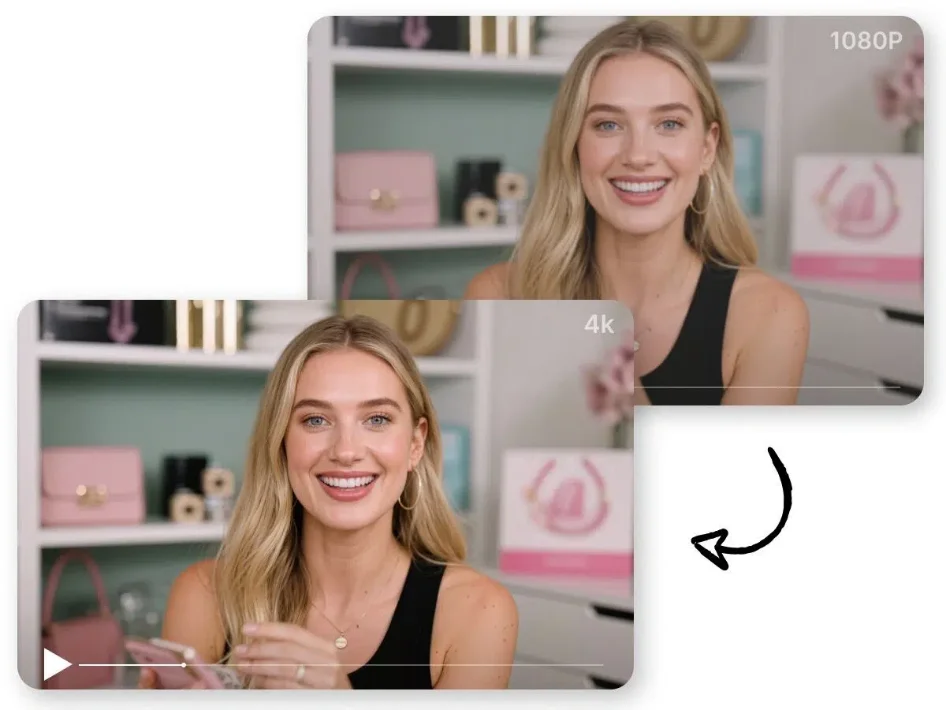
That’s what Zawa’s video quality enhancer is good for. Upload a phone-shot project video and get the improved version without mastering all kinds of editing software. It can increase soft details, make the overall image clearer, lighten dark footage, and clean up poor-quality recordings, all of which can be helpful.
Consider your project may involve various small parts, illustrations or just a model of something.
You want everything to be visible enough so that the audience knows what a particular element represents. Zawa can upscale footage up to 1080p or 4K, helping make those important details easier to see.
Step-by-Step: Enhance a Student Project Video With Zawa
Start With the Best Original Footage
Got the original phone video? Use that one.
Don’t use a version that saved from messaging apps, because the file might already be compressed. High-quality video footage provides Zawa with better details to process.
Identify the Clips That Need Improvement
Identify clips that appear blurry, dark, out-of-focus, low-resolution, or over-compressed. Prioritize clips where an increase in quality will greatly improve the overall visibility of the work.
Upload the Video to Zawa’s Video Enhancer
Visit Zawa Video Enhancer’s website. Press the “Upload Video” button, and select MP4, MOV, or M4V file from your computer. Choose quality such as 1K, 2K or 4K. Click Start Enhancing.
Review and Export
Quickly review sections such as project description, text, portrait, and example. If the outcome meets your expectations regarding clarity and naturalness, click “Download full video” to save the enhanced video in HD resolution.
What About Watermarks in Student Project Videos?
When Should Students Remove a Watermark?
That little watermark can be pretty distracting, right?
It is common to see watermarks when using free or trial video editors. Deleting a watermark from a video is acceptable:
- If you are the owner of the video
- It was made with your own editing tool.
- You have the right to alter it.
But don’t remove the copyright notice, author credit, or ownership markings of someone else’s video.
Clean Up Your Own Project Video With Zawa
Zawa keeps it easy to remove watermark from video!
It can remove logos, text, stamps, overlays, and hardcoded subtitles from your video with three different removal modes: Smart, Watermarks and Subtitles.
But how?… Zawa can even recognize watermarks and logo movements and is able to eliminate semi-transparent watermarks or partially visible ones.
This tool supports batch uploading without any problems. Besides that, Zawa also provides the opportunity to preview the results by watching the first 5 seconds for free. The full videos can be downloaded in HD or 4K resolution if you are a Premium customer.
Quick Framework to Get Better Results From Phone-Shot Videos
Get the Recording Right First
Doing a few things carefully while filming may help you save a great deal of trouble during editing.
Clean your lens, avoid handholding, use adequate light, and capture the scene at the best resolution achievable.
And you know what? Be sure that your subject is not lit only from the window in the background.
Keep Enhancement Natural
No need to overdo things!
Sometimes, more isn’t better if it comes down to sharpening. For instance, over-sharpening may create artificial-looking edges, and excessive brightening may result in loss of details.
Pay Attention to Audio
Excellent videos are of no use if students can barely hear the speaker because background noise is so loud.
Pick a spot free of noise or distraction for video recording; hold the phone close to you (not too far away) while recording for better voice clarity.
Final Checklist Before Submitting a Student Project Video
| Check | What to Look For |
|---|---|
| Visual | Project details, faces, and text are clear; lighting and colors look natural. |
| Presentation | Viewers can follow the project easily; captions are readable and audio is clear. |
| Distractions | Remove anything that blocks or takes attention away from the project. |
| Quality | Use a suitable resolution and avoid unnecessary compression. |
| Final File | Make sure the format is accepted and the exported video plays properly from start to finish. |
Conclusion
There’s no need for perfection in your student project video. A little imperfection is fine as long as it is clear, natural, and not hard to follow.
If the footage you recorded by your phone camera appears to be blurry, too dark or has noise then you may use Zawa to restore video quality. Zawa gives your videos a new twist by enhancing details, brightening lighting, improving colors, removing noise and enlarging the video resolution up to 4k.
All you need to do is upload your clip, choose the enhancements, see how it looks, and then export it. Compared to redoing your entire project shoot, isn’t it a much better idea to take advantage of such software as this?